
Docker Jenkins
Yuri Kushch / 2017-02-17
TL;DR. Migration to the new Jenkins using docker
- Install Docker on the new server using docker installation guide.
- Spin up Jenkins container to test:
docker run -p 8085:8080 --name jenkins jenkins -d
-
Try to reach Jenkins using machine's IP address and port 8085 http://MACHINE-IP_ADDRESS:8085
-
Jenkins needs to be unlocked. Find Admin password using the command:
docker logs jenkins
- Stop & remove jenkins test container:
docker rm $(docker stop jenkins)
- Prepare shared folder for new JENKINS_HOME:
sudo mkdir -p ~/jenkins/data sudo chmod -R 777 ~/jenkins
- Copy all from old JENKINS_HOME to the new shared folder (new JENKINS_HOME):
sudo cp -r /var/lib/jenkins/* ~/jenkins/data/
- Spin up the container with new JENKINS_HOME:
docker run -d -p 8085:8080 --name jenkins -v ~/jenkins/data:/var/jenkins_home jenkins
Preconditions
You have: machine with old Jenkins and old OS. We want: the most recent version of Jenkins with all migrated jobs, but in docker container.
Jenkins
Jenkins is an open source automation server written in Java. The project was forked from Hudson after a dispute with Oracle.
We have already working Jenkins instance on the old machine. The key idea here is to move everything to the new Jenkins on the new machine. And, yep, we want the latest Jenkins!
Let's start then.
Install Docker on Xenial 16.04 (LTS)
I propose to go to the docker installation guide. It is really well written and there should not be an issue.
To verify that you installed everything successfully, use the following command:
sudo docker run hello-world
Okay. If you've seen hello-world then everything installed and works correctly.
PS. I highly recommend you to refer to Manage Docker as a non-root user. As this is bad practice to run everything through sudo.
Install & Start Jenkins (test start)
Here we need to download Jenkins and try to do a test start. The following command will download the newest version of Jenkins and will run it on port 8085.
docker run -p 8085:8080 --name jenkins jenkins -d
-p 8085:8080— linkhost:containerports8080ofjenkinscontainer with the host8085.--name jenkins— gives a namejenkinsas the container name.-d— run in background mode, daemon.
After downloading, you could try to open the following URL: http://MACHINE-IP_ADDRESS:8085
You should see the following dialog:
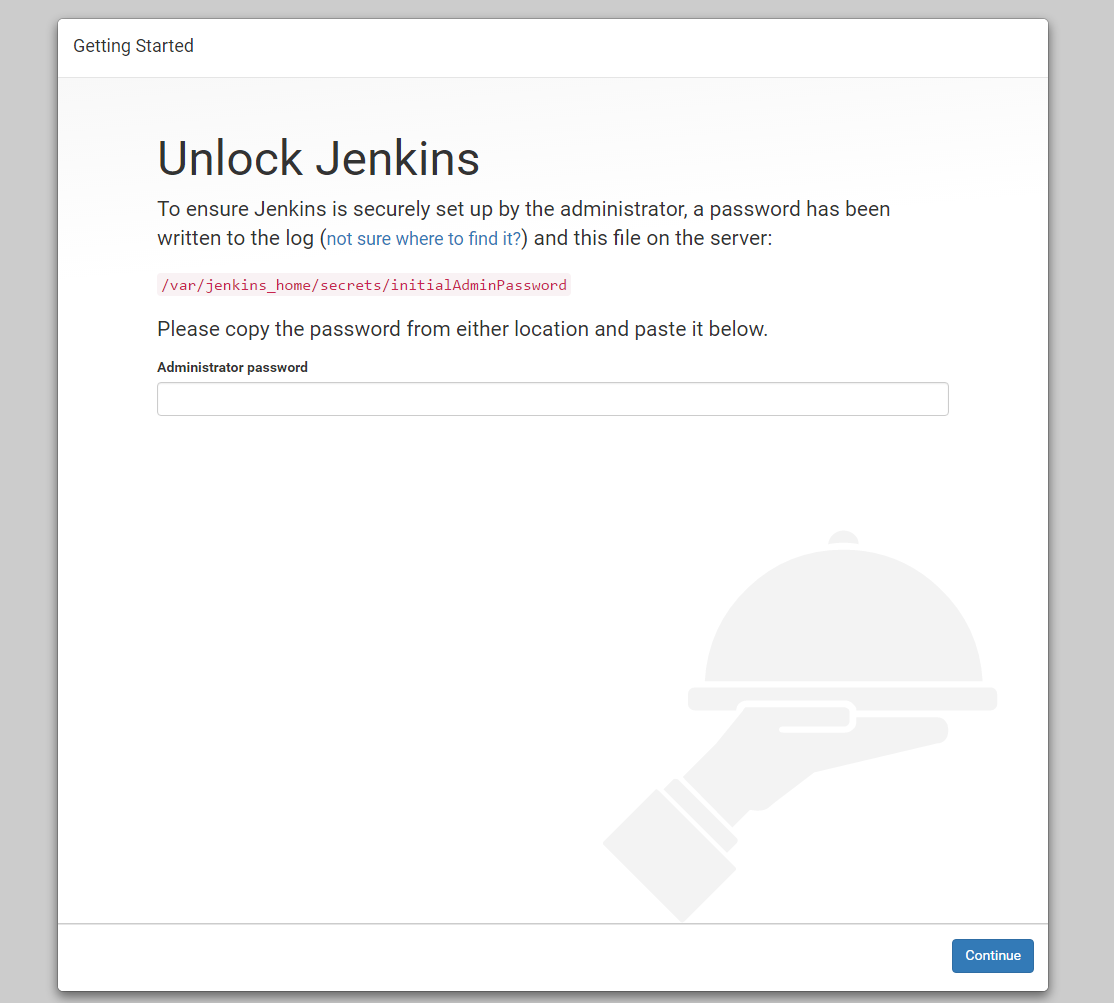
In order to unlock it, execute the following command:
docker logs jenkins
You should find something like that:
...***************************************************************************************************************************************************************************************Jenkins initial setup is required. An admin user has been created and a password generated.Please use the following password to proceed to installation:digitLettersCodeHereForCopyThis may also be found at: /var/jenkins_home/secrets/initialAdminPassword***************************************************************************************************************************************************************************************...
Copy your code and paste it into Administrator password. After doing that you should see something like that below:
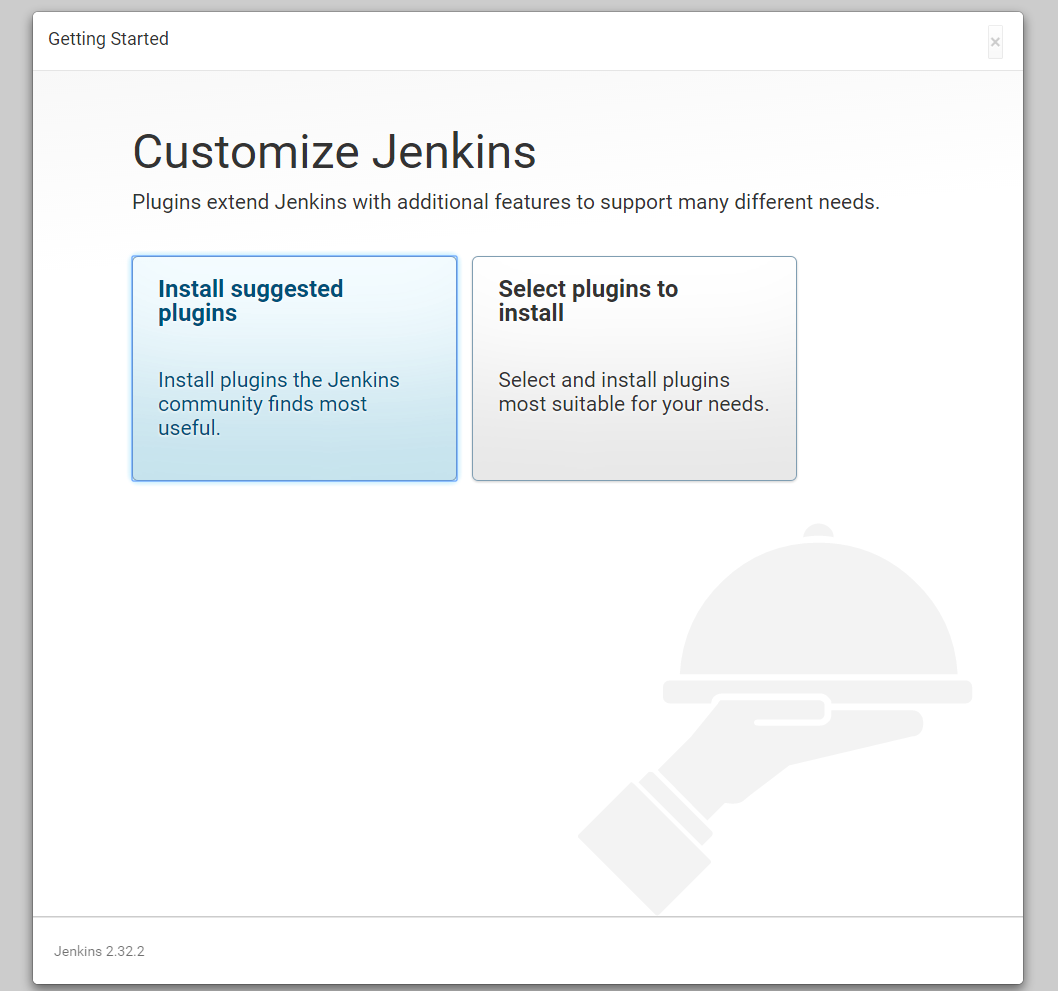
Okay, it seems that we are done with first steps. Let's stop the container and destroy it:
docker rm $(docker stop jenkins)
Running Jenkins with shared folder
Finally, we are ready to proceed with our migration process. Let's start the new container, but this time with some additional options. We will share the folder, this is the key point here.
Create Jenkins shared home folder
We need this to do in order to move jobs that we have into the container. First of all, let's create this folder:
sudo mkdir -p ~/jenkins/datasudo chmod -R 777 ~/jenkins~/jenkins/data — folder where we will put all our JENKINS_HOME from old Jenkins server.
Copy files from JENKINS_HOME old server
Now we are ready to copy old jobs and other stuff into our new shared folder. By default, JENKINS_HOME should be located at /var/lib/jenkins/. Let's copy all from JENKINS_HOME into our new shared ~/jenkins/data folder:
sudo cp -r /var/lib/jenkins/* ~/jenkins/data/
In my case this was the other server, so I had to tar.gz JENKINS_HOME on the old server and send it to the new server and then untar it into ~/jenkins/data folder.
Run Jenkins in container
Let's spin up the new container with Jenkins, but this time with the shared folder ~/jenkins/data.
docker run -d -p 8085:8080 --name jenkins -v ~/jenkins/data:/var/jenkins_home jenkins
Side note.
You could face an issue that folder could lack permissions. You should map folder to correct user OR you could do something like this:
sudo chmod -R 777 ~/jenkins/
Migration is finished. You should see everything on the new server, but now from docker container!